Staking/Holding
Accessing Jobs in the HUMAN App: Staking or Holding HMT#
To access jobs in the HUMAN App, users must demonstrate commitment to the network by either:
- Staking HMT on-chain, or
- Holding HMT on a centralized exchange (CEX) and proving ownership via API keys.
Both approaches are supported and unlock access to jobs.
Option 1: Stake HMT (On-Chain)#
Staking HMT means locking tokens in the HUMAN Protocol staking contract.
This method provides on-chain verification.
Steps to stake HMT#
- Acquire HMT
- Buy HMT from a supported exchange or DEX.
- Transfer the tokens to a self-custodial wallet (e.g. MetaMask).
-
Minimum required: 1000 HMT.
-
Open the staking dashboard
-
Go to:
https://staking.humanprotocol.org -
Connect your wallet
- Click Connect Wallet
-
Approve the connection in your wallet.
-
Enter the amount
-
Click Stake and enter the amount of HMT to stake.
-
Approve and stake tokens
-
Confirm two transactions, one to approve and another to stake.
-
Verify staking status
- Once the transaction is confirmed, your wallet address is considered staked.
- You are now eligible for jobs that require staking.
Info
Staked tokens are locked until you explicitly unstake them.
Option 2: Hold HMT on a CEX (API Key Verification)#
If you prefer not to move tokens on-chain, you can hold HMT on a centralized exchange and prove ownership via read-only API keys.
Exchange account prerequisites#
Before you create and connect API keys, please make sure that all prerequisites are met:
- You use a live account, not a demo or sandbox account.
- You hold HMT in your exchange wallet (minimum required: 1000 HMT).
How to create API Keys#
- Log in to your MEXC account.
- Click the “profile icon” in the top-right corner.
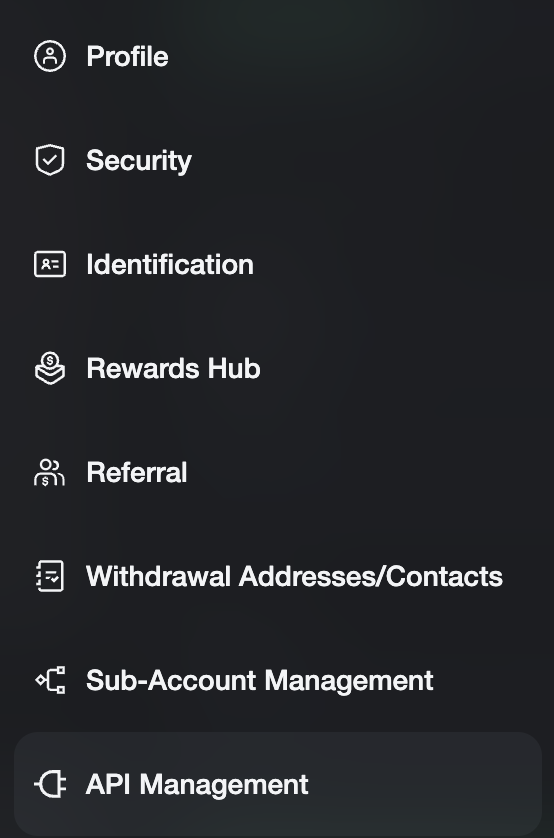
-
Then click on “API Management”:
-
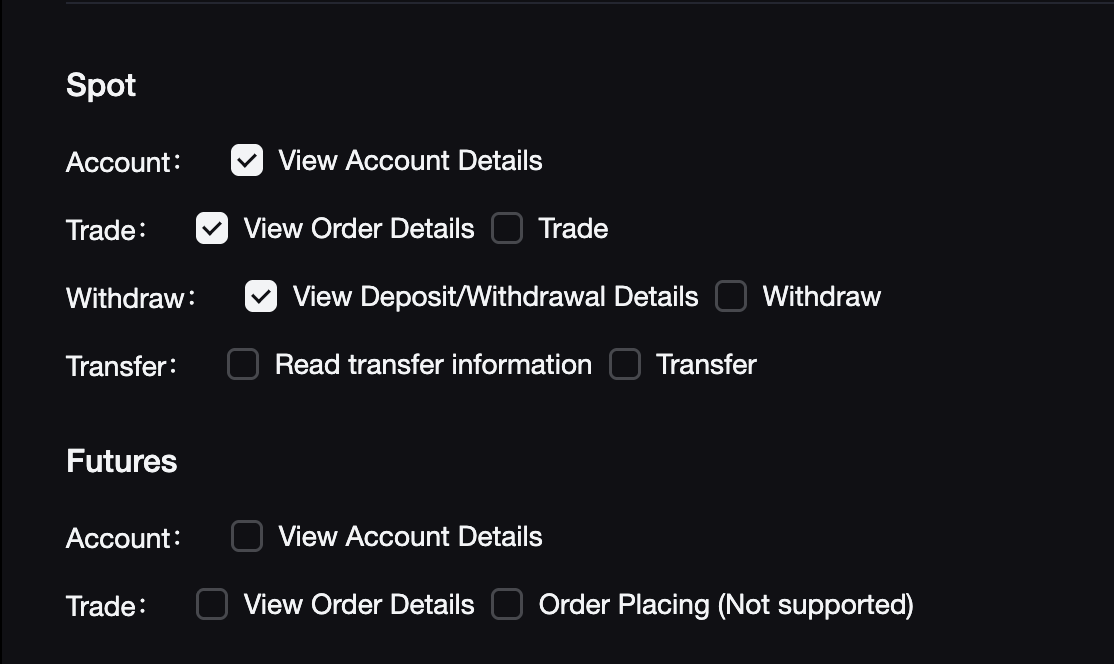
To create a READ-ONLY API key, select only the permissions shown below:
-
Be aware that the Secret Key is only displayed once. It cannot be retrieved after it is lost. Please keep or save it properly.
- Log in to your Gate account.
- Click the “profile icon” in the top-right corner.
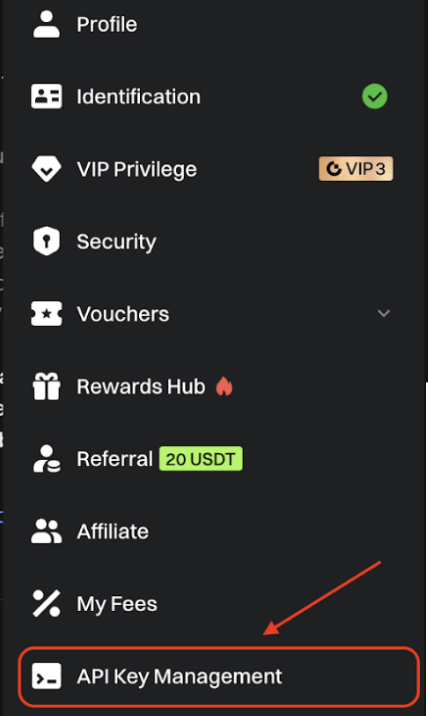
-
Then click on “API Key Management”:
-
Click "Create API Key" in the top-right corner.
- In the following pop-up window, click "Trading Account".
-
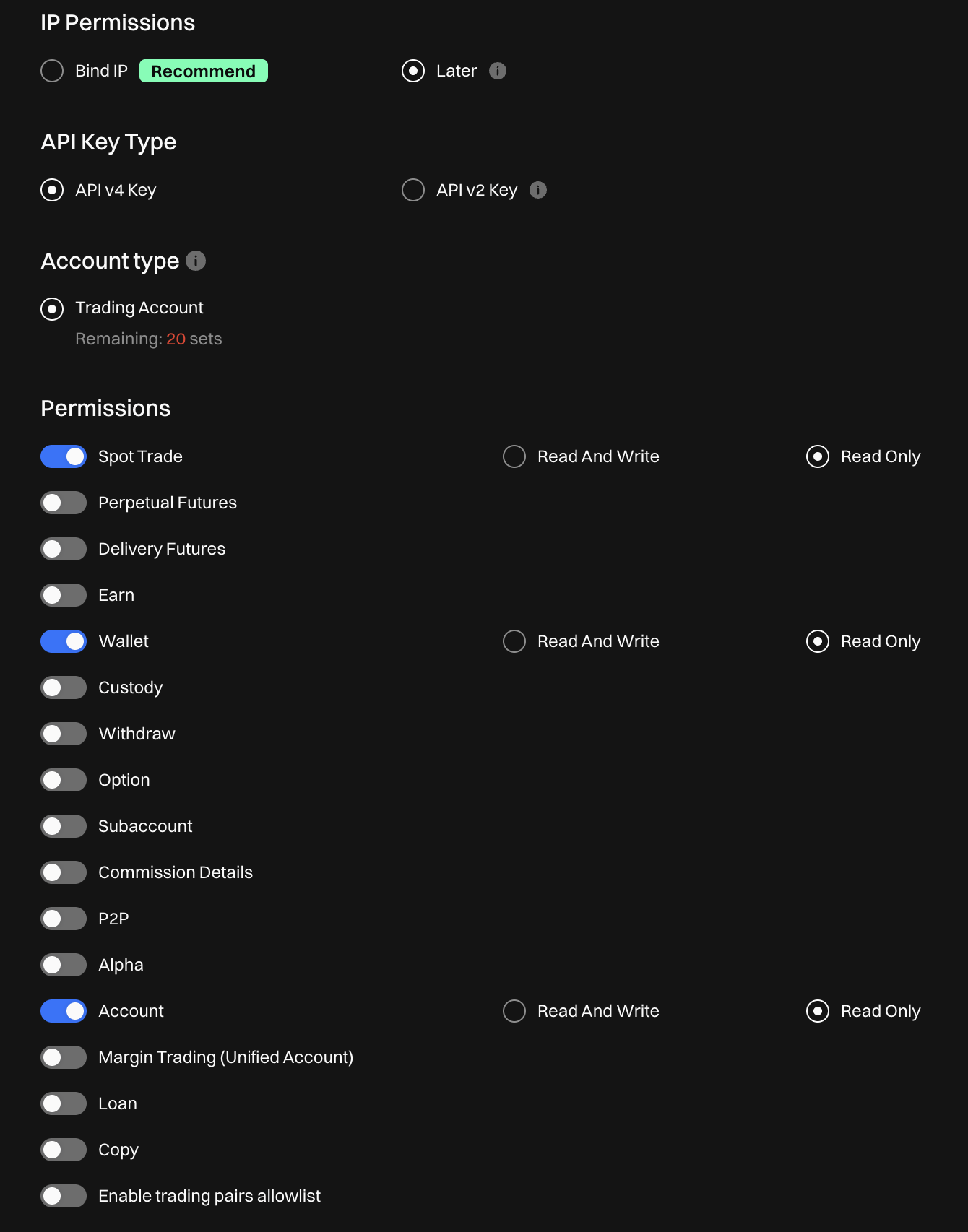
To create a READ-ONLY API key, select only the permissions shown below:
-
Be aware that the Secret Key is only displayed once. It cannot be retrieved after it is lost. Please keep or save it properly.
Recommendations#
- Do not share your API keys with other participants.
- Make sure your API key is valid and not expired at all times. The platform checks validity when you add it, but after that it's solely the participant's responsibility to keep their API keys valid.
API keys management#
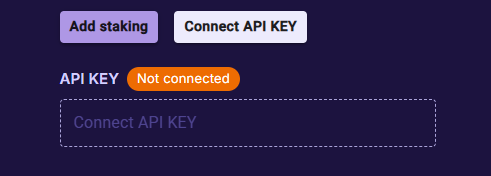
From your profile page (bottom left):
-
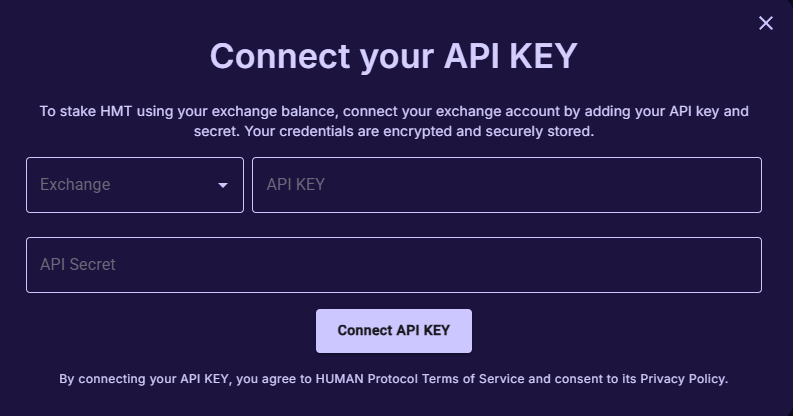
Click Connect API key, select the exchange, and paste the keys.
-
Click Connect API Key.
- After adding keys, if the minimum stake required is met, you will be able to access tasks.
Info
Please note that we allow only 1 API key per exchange.
Info
Please note that some exchanges require additional information about your API key.
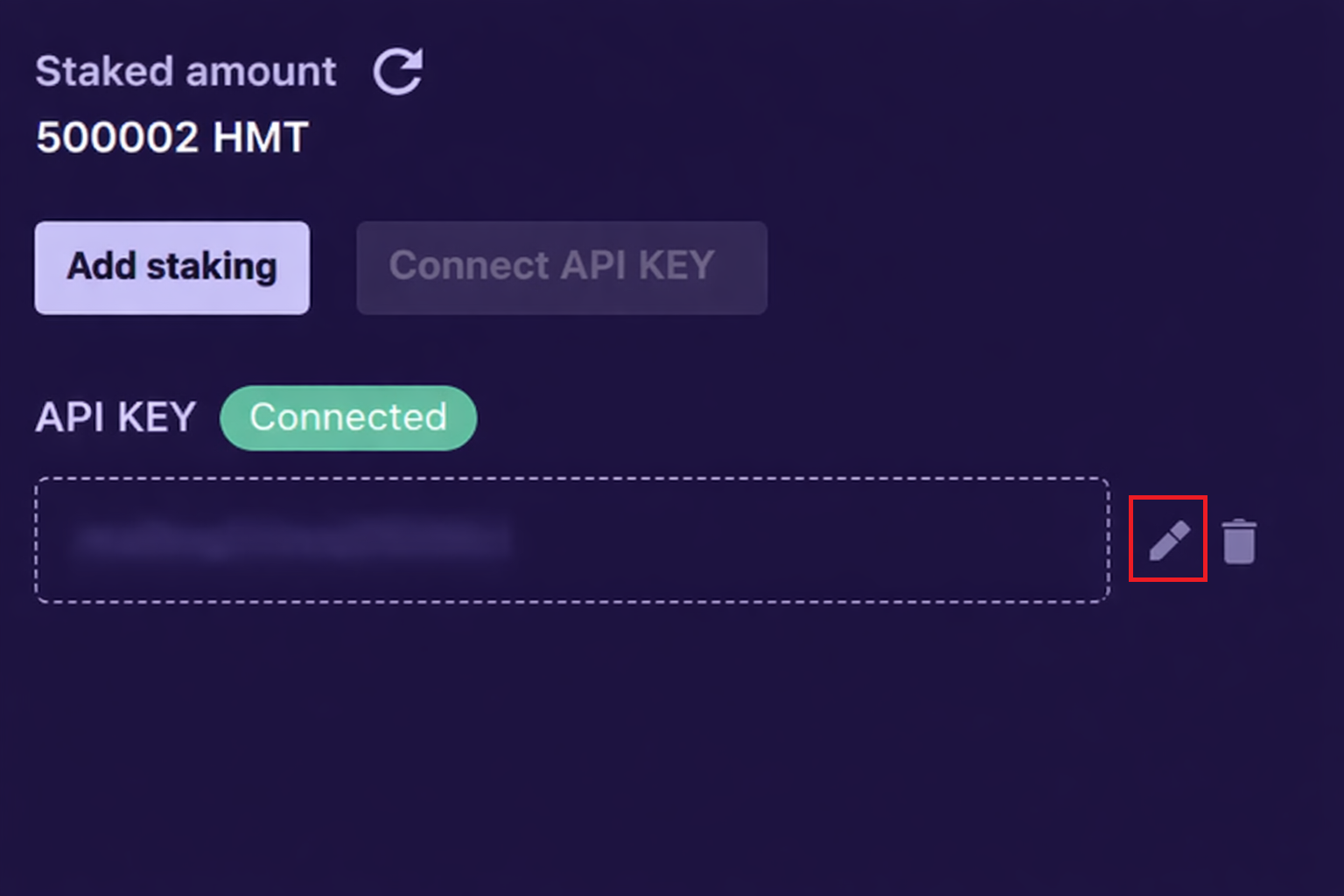
If your existing API key has expired, we strongly suggest that you edit the existing key instead of deleting it.
To do that, please click on the pencil icon next to the API key you want to alter and paste the new API key:
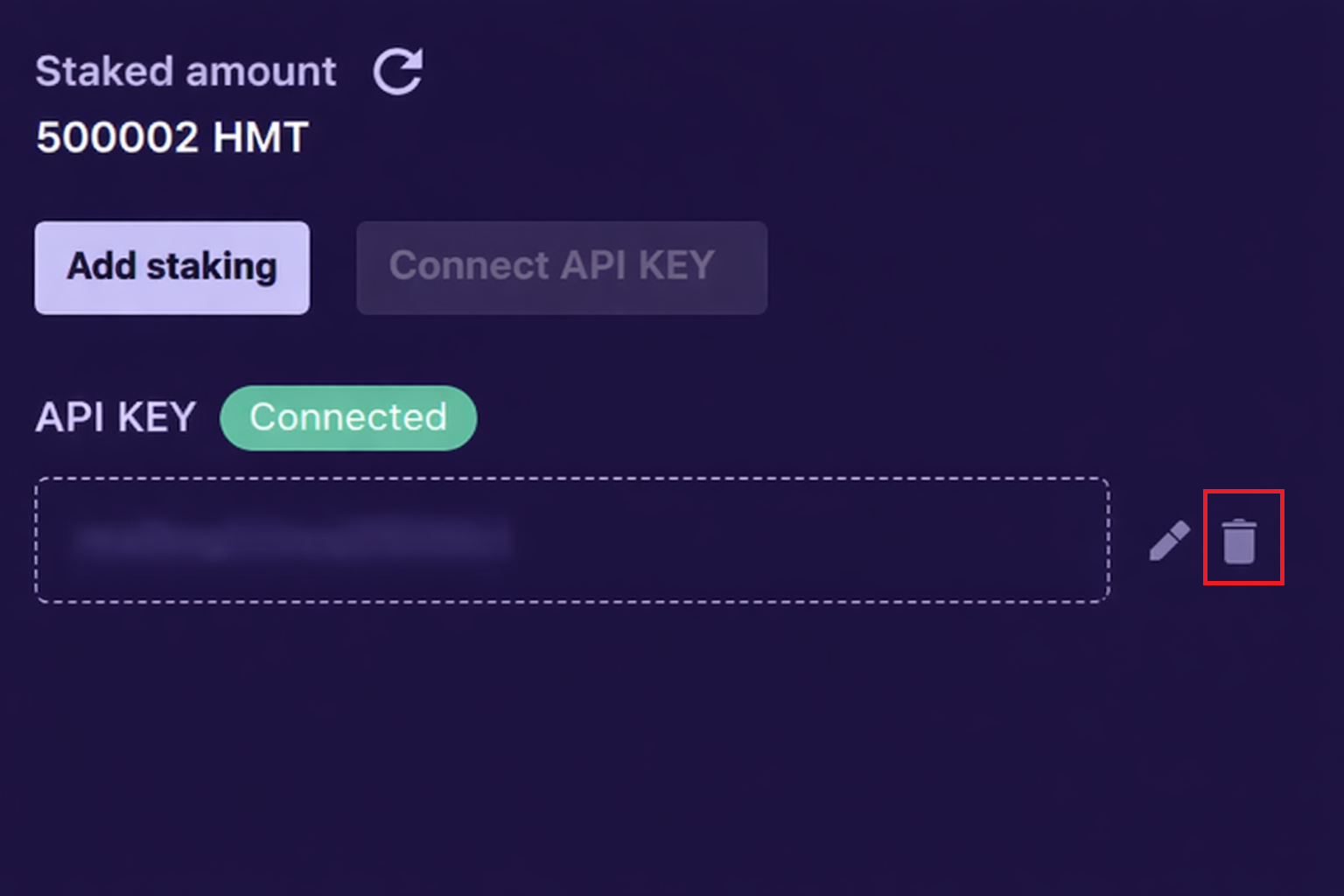
If you want to delete an existing API key, click the bin icon.
Warning
If you delete an API key, we will automatically remove your access to tasks.